How to take mail backup of Gmail account to PC?
Available on Windows, macOS, and Linux.
Want to take backup of emails of Gmail accounts to PC? Then visit this useful page where you will find an instant and safe solution by which you can comfortably backup mailboxes of Gmail account. Several users have the same query and therefore, we have come up with an easy and swift solution for the same. Get complete guidance to take backup of Gmail account to PC.
Due to the absence of an effective solution to archive Gmail account data to local PC. We have introduced a smart solution for users whose download link is mentioned above. Users can simply download the software from there and start archiving Gmail account emails to their PC. We promise you of getting safe and accurate results.
DownloadBuy NowWhy choose the software to archive Gmail emails to PC?
- Backup numerous Gmail account data
- No disturbances to mailbox folder structure
- No size restrictions on backup
- Offers 7 file formats to save backup data
- Simplified interface for easy understanding
- 100% well-tested application, provide healthy results
- Retain email formatting and attachments
Guide to take mail backup of Gmail account to PC is as follows;
Step 1. Download and Run WholeClear Gmail Backup software.
Step 2.Choose Gmail account. Provide its login details – username and password. Hit the Authenticate button. You will find a message of Gmail account successfully authenticated.
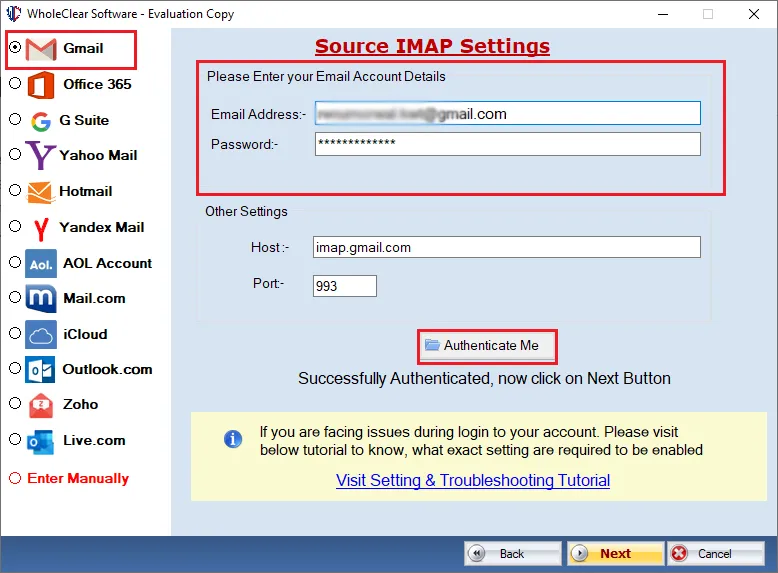
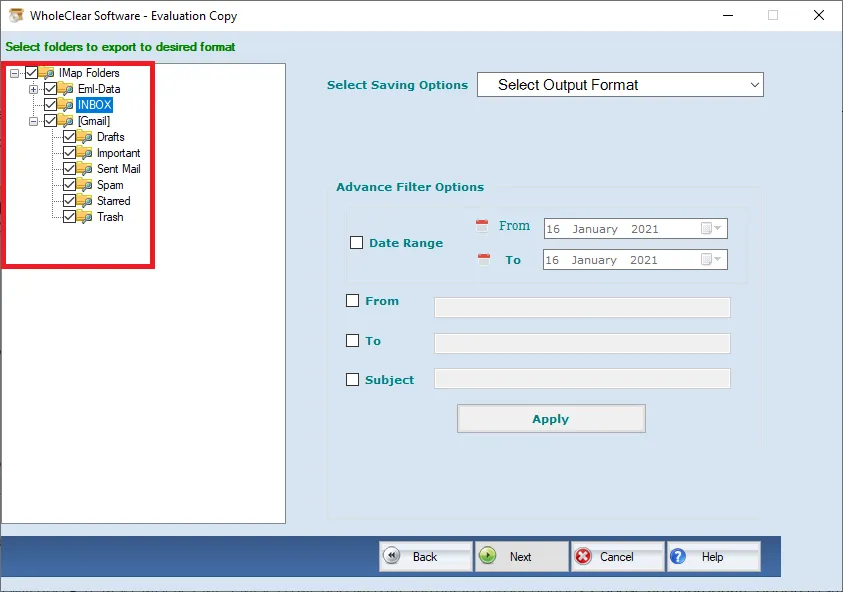
Step 3. After connecting to your Gmail account, select a particular folder or all folders of Gmail account for backup. You can click on Reset button if you have mistakenly provided wrong account details.
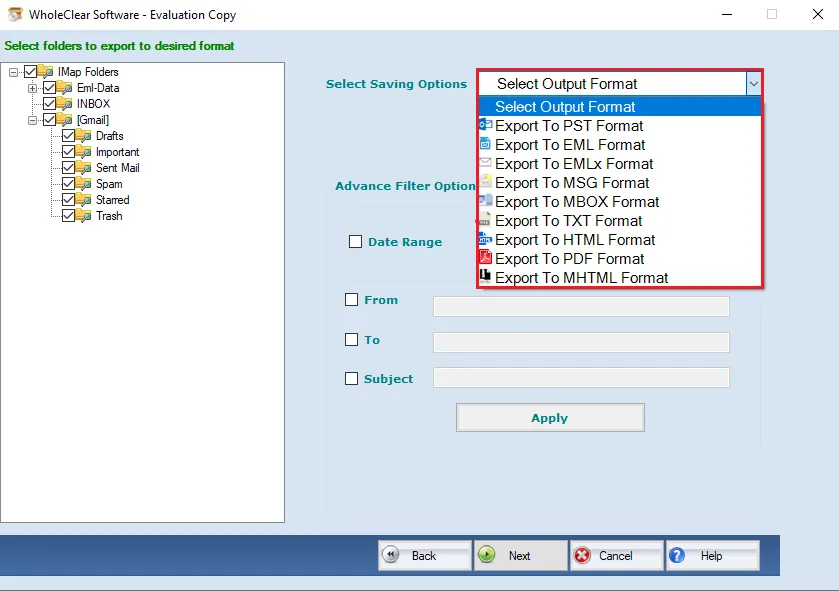
Step 4. You will find PST, MSG, MBOX, EML, EMLX, HTML and MHTML format in output options. Choose an appropriate option to save the backup data.
Step 5. Go to the Browse button and provide a location of your system to save backup results.
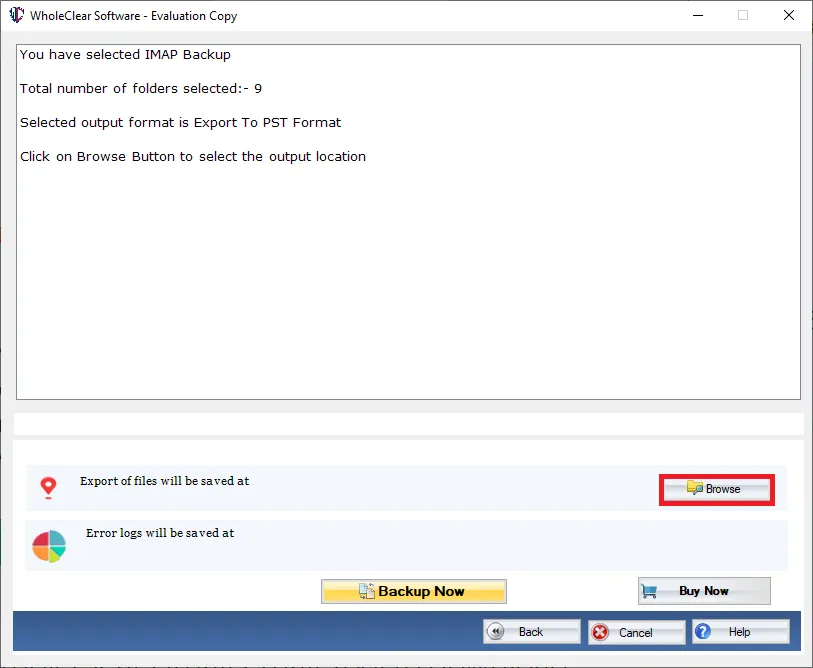
Step 6. Click on the Convert selected button and this will begin the backup task. You can stop the downloading task if needed using the Stop button.
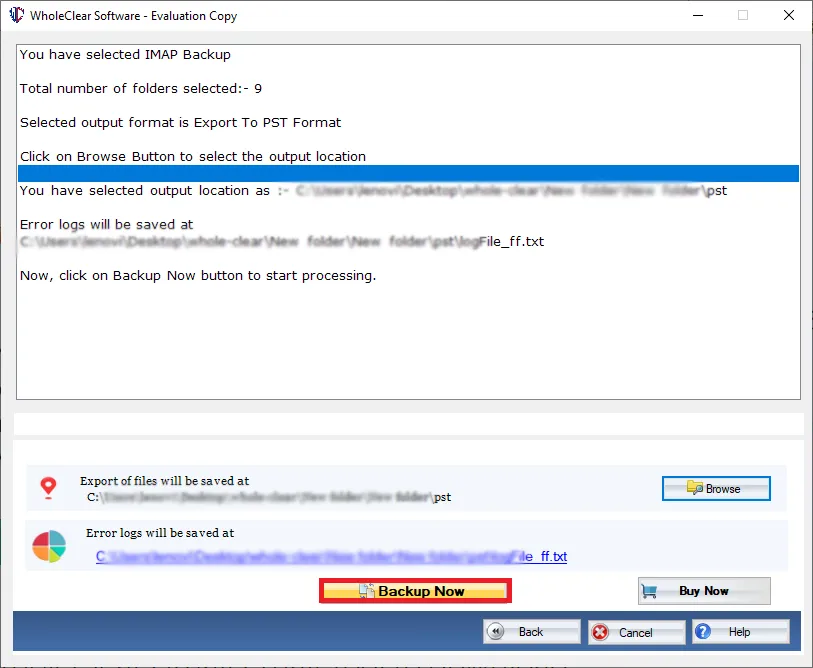
Once you follow these six simple steps, you can simply archive Gmail mailbox folders to your system. This is one of the easiest solutions to take backup of all Gmail accounts.
Note: Authenticate the mailbox with the IMAP host, email, and an App Password, then click Authenticate. On the last screen use Browse output folder and Convert selected. The demo processes up to 25 items.
Ending Lines
With this smart solution, taking backup of any Gmail account is too much easier for every user. There is no limitation imposed by the software to backup all mailbox folders of any Gmail account. With this single application, you can archive data of multiple Gmail accounts one by one. For more details about the software, download its demo edition first and for any queries, contact our tech support 24*7.

