

Do you want to migrate Lotus Notes Archive files to Outlook for Windows? Unfortunatey, Lotus Notes doesn’t provide any direct solution to convert Lotus Notes to Outlook PST. Some limited manual conversion procedures are available, but they don’t give guarantee of data security. Hence, the conversion task becomes critical and tough for organizations. In this blog we highlight reasons and process of conversion.
HCL Notes, IBM Notes, or Lotus Notes is one of the most popular email clients among enterprises. It allows users to manage their emails, contacts, notes, messages, events, journals, and tasks systematically. It is robust software and offers high quality security for your data. Therefore, enterprises like to use the application over other alternatives.

HCL Notes has its file format to save data offline. It is NSF file format. The file format is inaccessible on other platforms. This means you cannot access Lotus Notes databases on other platforms. If you want to access Lotus Notes data on other platforms, you require conversion. Therefore, Lotus Notes to Outlook conversion is the only resort to access Lotus Notes data on Outlook.
Note: If you are seriously looking for a reliable solution to migrate Lotus Notes Archive files to Outlook for Windows, continue read the article.
Reasons To Migrate Lotus Notes Archive files to Outlook
- HCL Notes is an advanced email client. It is robust but it requires technical skills to handle. Therefore, a separate training session requires arranging for fresher handling HCL Notes for the first time. With MS Outlook for Windows, this is not a problem. It is a user friendly application.
- Lotus Notes is a costlier option than Outlook for Windows. It encourages users to move from Lotus Notes.
- Lotus Notes was previously IBM product. Now, it is the product of HCL. Each company has its own set of rules and prices for the application. Users who want a reliable and a stable alternative like to choose Outlook for IBM Notes.
There are several other reasons. You can share your reason to move from HCL Lotus Notes to Outlook. We appreciate your views.
Difference Between NSF and PST File Format
| Parameters | NSF | PST |
| Full Form | Notes Storage Facility | Personal Storage Table |
| Created By | HCL Notes | Microsoft Outlook |
| Email Attributes | NSF file holds contacts, emails, tasks etc., in document oriented database system. | PST file holds contacts, emails tasks, etc. in traditional mailbox structure. |
| Platform Compatibility | Lotus Notes supports cross-platforms Windows and macOS operating systems. | Microsoft has designed Outlook for Windows and Outlook for Mac separately |
| Third-Party Tool Compatibility | Lotus Notes NSF file format supports no other third party tools | Outlook PST file format is not compatible with other third party tools |
| Migration & Export Process | HCL Notes supports Archive option to manage emails with all attributes. | Outlook has inbuilt option to Import and Export PST data to a few platforms. |
| File Size Limitations | Lotus Notes 8.5 and later version: 256 GB. Lotus Notes 8.5 Lower versions: 64 GB. | Outlook has several versions, latest includes 2013, 2016, and 2019 Unicode file format can store up to 50GB ANSI file format can store up to 2GB |
Manually Convert/Migrate Lotus Notes to Outlook PST for Free
Yes, you have read the right. There is a free solution to convert NSF emails to PST. The manual method combines three comprehensive methods. They are related to each other. You can complete them one by one. Here are the steps to follow.
Part-1: Convert Lotus Notes Mailbox
- Start Lotus Notes on our Windows system
- Lotus Notes installation is essential here. Open the required NSF file with this step File >> Open >> Lotus Notes application.
- Select the desired NSF file and go to the File menu to select Export here.
- After that provide the file, the location to save data and then Comma Separated Values option from the dropdown menu. Hit Export.
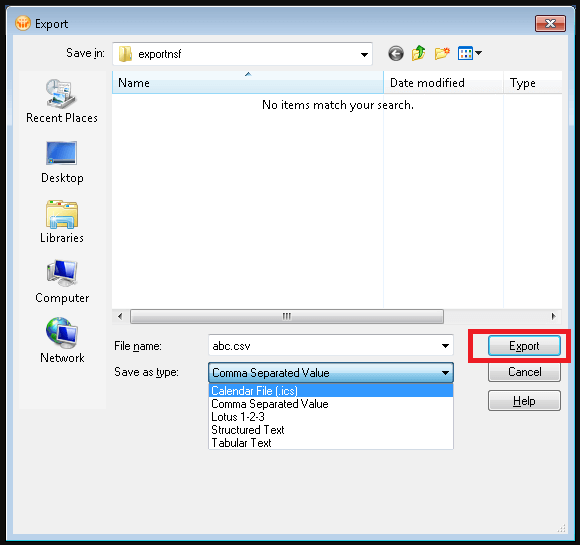
- Choose additional export options and press OK.

- In the end, the data saves in the CSV file format to your destined location.
Note: If the above method doesn’t export Lotus Notes files into CSV, you can manually rename the file with .csv extension.
Tips & Tricks :– Migrate Lotus Notes emails to MBOX
Part-2: Import CSV Data to Outlook
- Make sure Outlook is available in your system. Run the program and hit the File menu.
- After that, locate the Open and Export tab and hit the Import/Export option.

- From the Import and Export wizard, select the Import from another program or file from the given list. Hit Next tab.
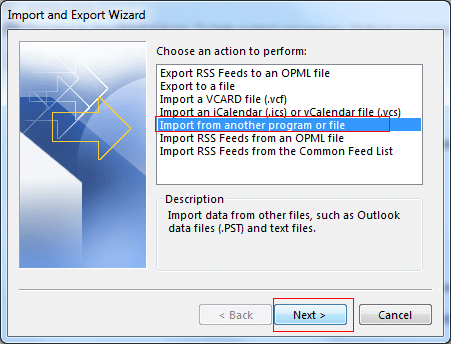
- After that, select Comma Separated Values and hit Next.
- After that, locate the CSV file you have created recently to save Lotus Notes data.
- Add the recently created CSV file in the wizard and hit the Finish button.
- Here the data exports from Lotus Notes to Outlook.
Part-3: Extract and Save Data in PST
Now, your Lotus Notes data is in Outlook for Windows. It is an extra step where you can extract Lotus Notes data from Outlook to save in PST file format. Here are the steps to follow:
- Start Microsoft Outlook and go to the File menu.
- From the menu, hit the Open and Export option and then the the Import/Export button.
- From the Import and Export Wizard, select the Export to a file and hit Next.

- The next windows “Export to a File” allow you to choose Outlook Data File (.pst) option. Select the option and hit the Next button.

- Now, choose the folder that holds the NSF data to save into PST.
- Hit the Browse menu and provide the destination to save the exported data in the PST file format.
- You can choose the below option and then hit the “Finish” tab.
How do you find the above manual method? Do you think that it offers complete conversion? Do you think that you can satisfy with the results?
Drawbacks of the Manual Method
- The foremost disadvantage of the manual method is that it sometimes saves the exported data without extension. Therefore, the files may require renaming.
- CSV file format is not suitable to store emails. Therefore, you cannot expect accuracy during conversion.
- The last drawback is that it is a time consuming process and may require you to be technically skilled. At the same time, it doesn’t offer complete conversion.
These are evident drawbacks that you can expect. If you want smooth and error free conversion results, we suggest you to use the best alternative or a professional application.
Migrate Lotus Notes Archive files to Outlook With NSF to PST Converter
There are various alternatives available for NSF files to PST Conversion. A professional application WholeClear Lotus Notes to Outlook Converter can Migrate Lotus Notes Archive files to Outlook PST with all elements. This means, you can export emails, contacts, notes, journals and various other elements of Lotus Notes NSF to Outlook PST without issues. The application is well suitable to get results according to your desire.

Steps to Export IBM Lotus Notes to Outlook PST File:
Let’s know how it works and export to MS Outlook from IBM Notes, Firstly we need to Download and run the software on your system, then follow the instruction given below:-
- Step 1: Add the required NSF files and upload them
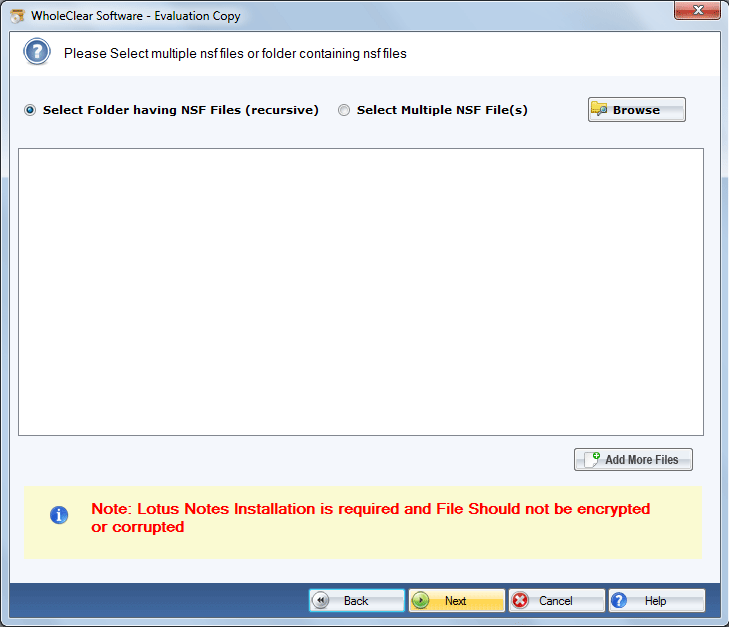
The tool has two option – One is “Select Folder” and another is “Select Multiple NSF files”. Choose any one of them and hit the “Browse” button to upload locally saved NSF files.
- Step 2: Choose the option “Export to PST”
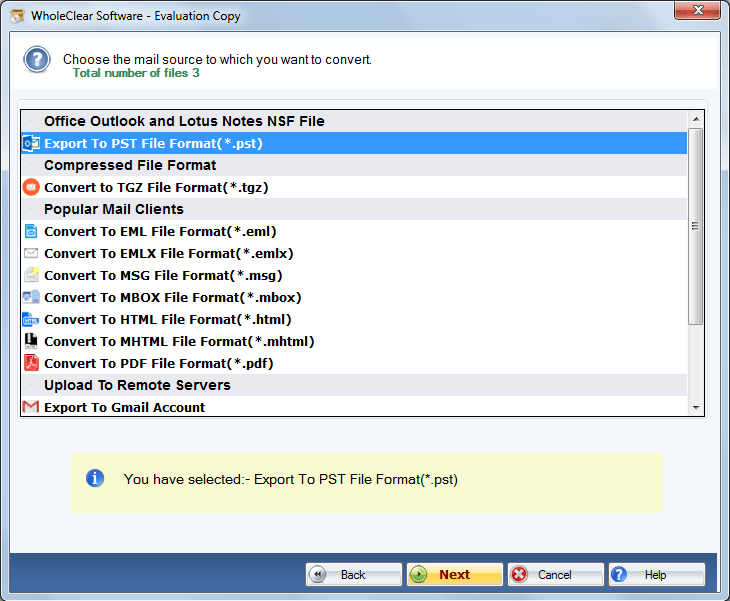
In this option, from the list, select “Export to PST” and press Next
- Step 3: Click on the “Browse” option to select the local location
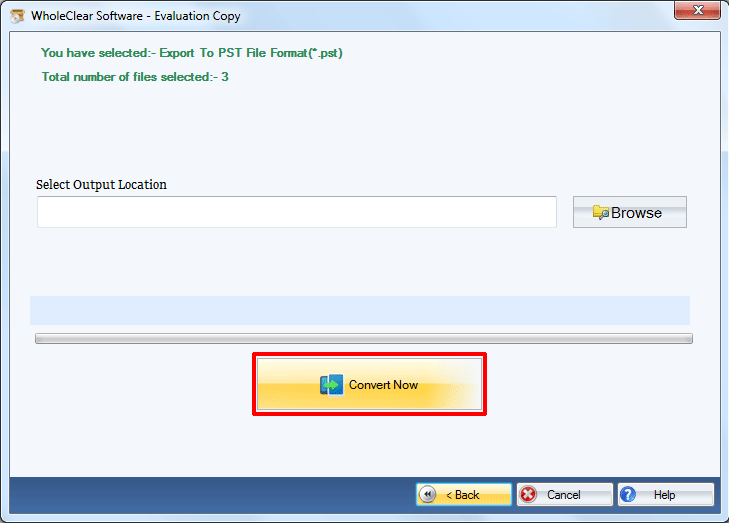
Now, provide the output location, by clicking on the “Browse” button and selecting a suitable local folder.
- Step 4: Hit the “Convert Now”
Click on the “Convert Now” button to complete the process of Lotus Notes nsf to Outlook PST Conversion
Also Read:- Export Outlook PST to Lotus Notes NSF
Final Words
Migration Lotus Notes to Outlook can become easy if you select a suitable solution. A professional application is a smart alternative to any manual conversion of Lotus Notes NSF to Outlook PST. Carefully choose a professional tool.